Visit Scheduling
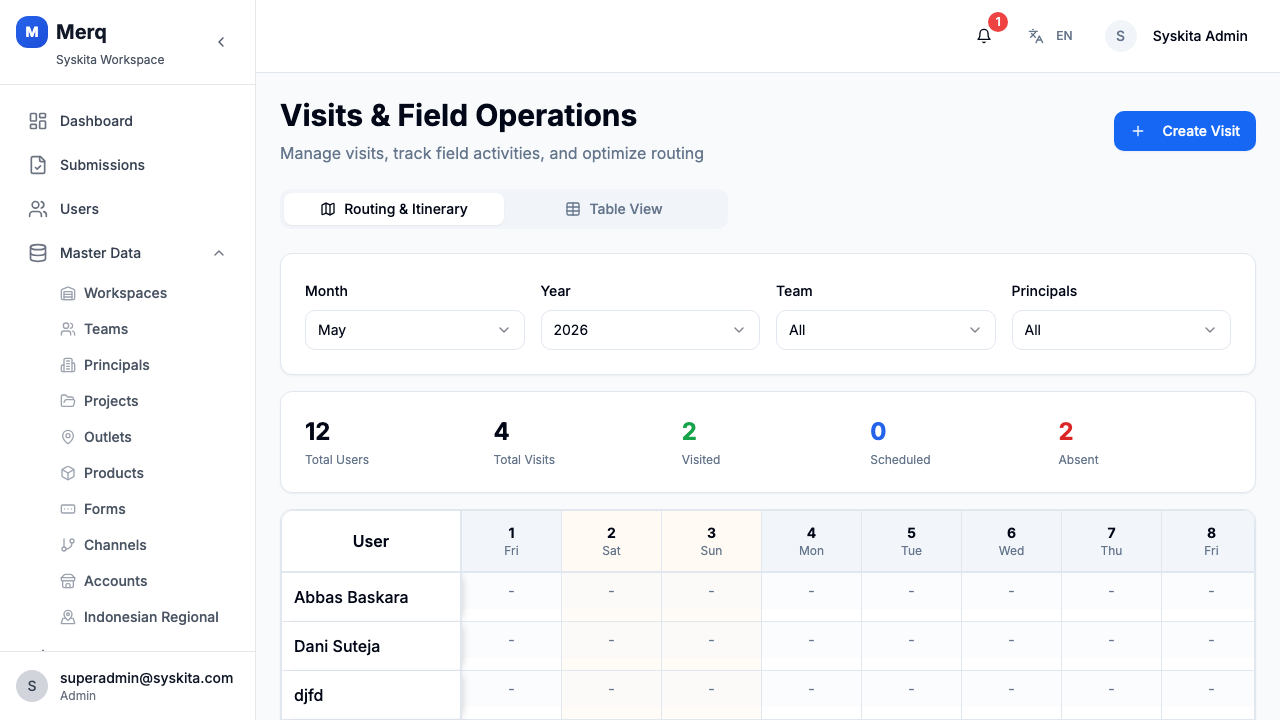
Visits are the core operational unit in Merq — a scheduled or unscheduled activity by a frontliner at an outlet. The Visits page provides two views: a Table View for list-based management and a Routing & Itinerary tab for planning visit routes.
Visits List
Section titled “Visits List”Navigate to Visits in the sidebar.
Filters
Section titled “Filters”The visits list supports the following filters:
| Filter | Description |
|---|---|
| Keyword | Search by outlet name or visit title |
| Status | Pending, In Progress, Completed, Cancelled |
| Date Range | Filter by visit date |
| Project | Filter by project |
| Team | Filter by team |
| User / Frontliner | Filter by assigned field staff |
| Region | Filter by outlet region |
Table Columns
Section titled “Table Columns”The visits table shows: outlet name, assigned frontliner, project, team, scheduled date, status, check-in time, check-out time, and duration.
Creating a Visit
Section titled “Creating a Visit”- Click Create Visit (requires
visit.manage,submission.create, orsubmission.approvepermission) - Fill in the visit form:
- Outlet — select the target outlet
- Frontliner — assign to a user
- Project — link to a project
- Scheduled Date — when the visit should happen
- Shift (optional) — select work shift (e.g., Morning, Afternoon, Night)
- Tasks — attach task checklist items (optional)
- Click Save
Shift Assignment
Section titled “Shift Assignment”What is a Shift?
Section titled “What is a Shift?”A shift defines the expected working hours for a visit. Shifts help you:
- Schedule visits within specific time windows
- Group visits by shift for reporting
- Track frontliner performance per shift
Default Shifts
Section titled “Default Shifts”The system comes with three default shifts:
| Shift Name | Start Time | End Time |
|---|---|---|
| Shift Pagi | 07:00 | 15:00 |
| Shift Siang | 15:00 | 23:00 |
| Shift Malam | 23:00 | 07:00 |
Creating Custom Shifts
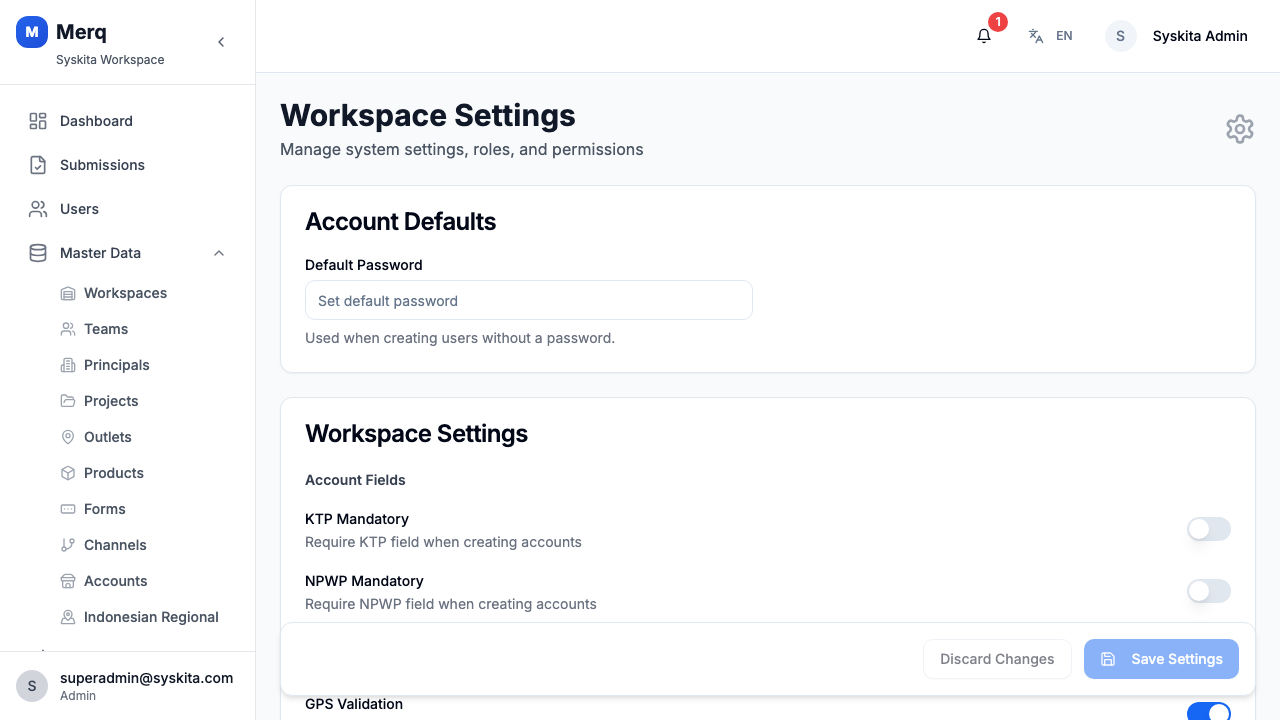
Section titled “Creating Custom Shifts”Admins can create custom shifts in Settings → Shift Management (requires shift.manage permission).
To create a shift:
- Navigate to Settings → Shift Management
- Click Add Shift
- Fill in:
- Shift Name — e.g., “Weekend Shift”, “Express Visit”
- Start Time — in HH:MM format
- End Time — in HH:MM format
- Active — toggle to enable/disable
- Click Save
Shift in Visit Detail
Section titled “Shift in Visit Detail”When viewing a visit detail, the assigned shift (if any) is displayed alongside the scheduled date and frontliner information.
Visit Detail
Section titled “Visit Detail”Click a visit row to open the Visit Detail page.
The detail page shows:
- Outlet information (name, address, GPS)
- Assigned frontliner and team
- Scheduled vs. actual check-in/check-out times
- GPS coordinates at check-in
- Selfie photo taken at check-in
- Distance from outlet at check-in (geofence check)
- List of tasks with completion status
- Submissions linked to this visit
Visit Statuses
Section titled “Visit Statuses”| Status | Meaning |
|---|---|
| Pending | Scheduled but not yet started |
| In Progress | Frontliner has checked in |
| Completed | Frontliner has checked out |
| Cancelled | Visit was cancelled |
Routing & Itinerary Tab
Section titled “Routing & Itinerary Tab”The Routing & Itinerary tab provides a map and list view for planning daily visit routes for frontliners. Use this to optimize visit sequences and avoid geographic backtracking.
Visit tasks are checklists that frontliners must complete during a visit. Tasks can be defined per visit or as templates.
Navigate to the Tasks section (linked from Visits) to manage task templates.
Bulk Import of Visits
Section titled “Bulk Import of Visits”To schedule many visits at once, use the Import Center with the Visits template.