Teams & Users
Teams are groups of field staff (frontliners) assigned to work on one or more projects. A team is typically led by a supervisor or manager.
Teams List
Section titled “Teams List”Navigate to Teams in the sidebar.
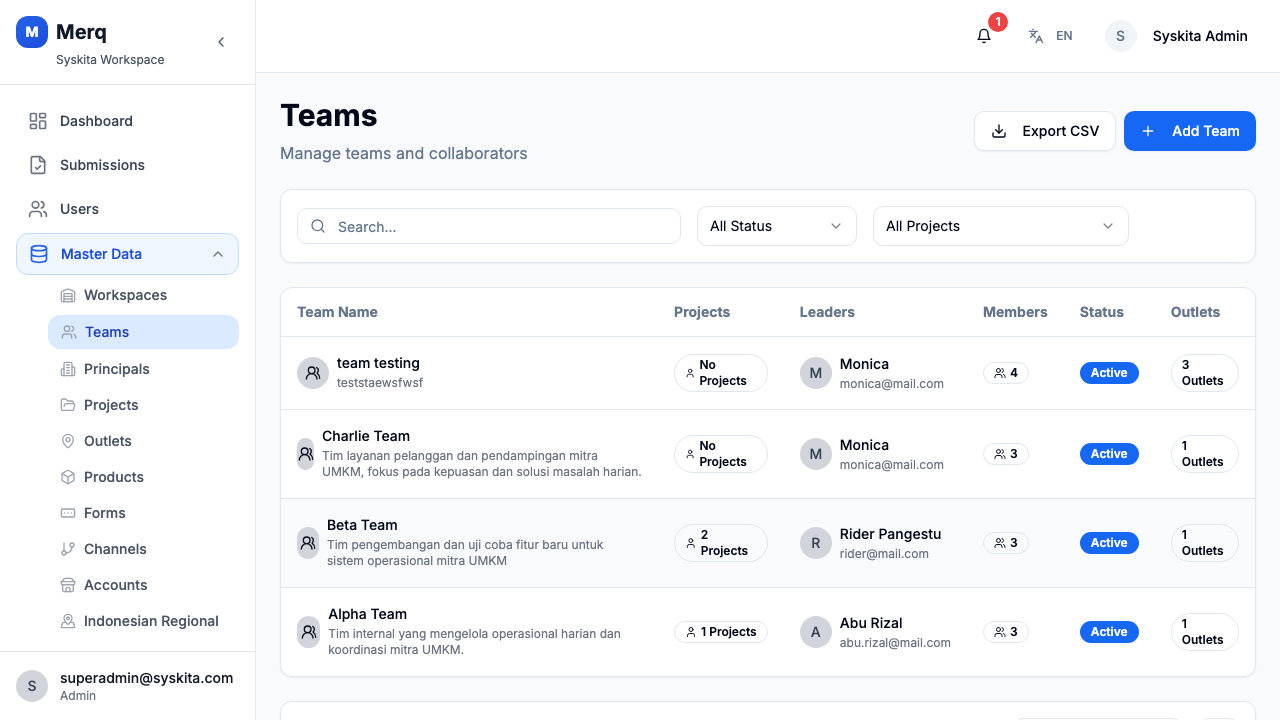
The table shows team name, status, member count, and created date.
Adding a Team
Section titled “Adding a Team”- Click Add Team
- Fill in the form:
- Team Name
- Status (Active / Inactive)
- Click Save
Exporting Teams
Section titled “Exporting Teams”Click Export CSV to download the full teams list. This button is permission-gated.
Team Detail
Section titled “Team Detail”Click a team row to open the team detail. From here you can:
- View team members
- Link the team to projects
- Edit team metadata
Users are all accounts in your workspace — field staff, supervisors, managers, and admins.
Users List
Section titled “Users List”Navigate to Users in the sidebar.
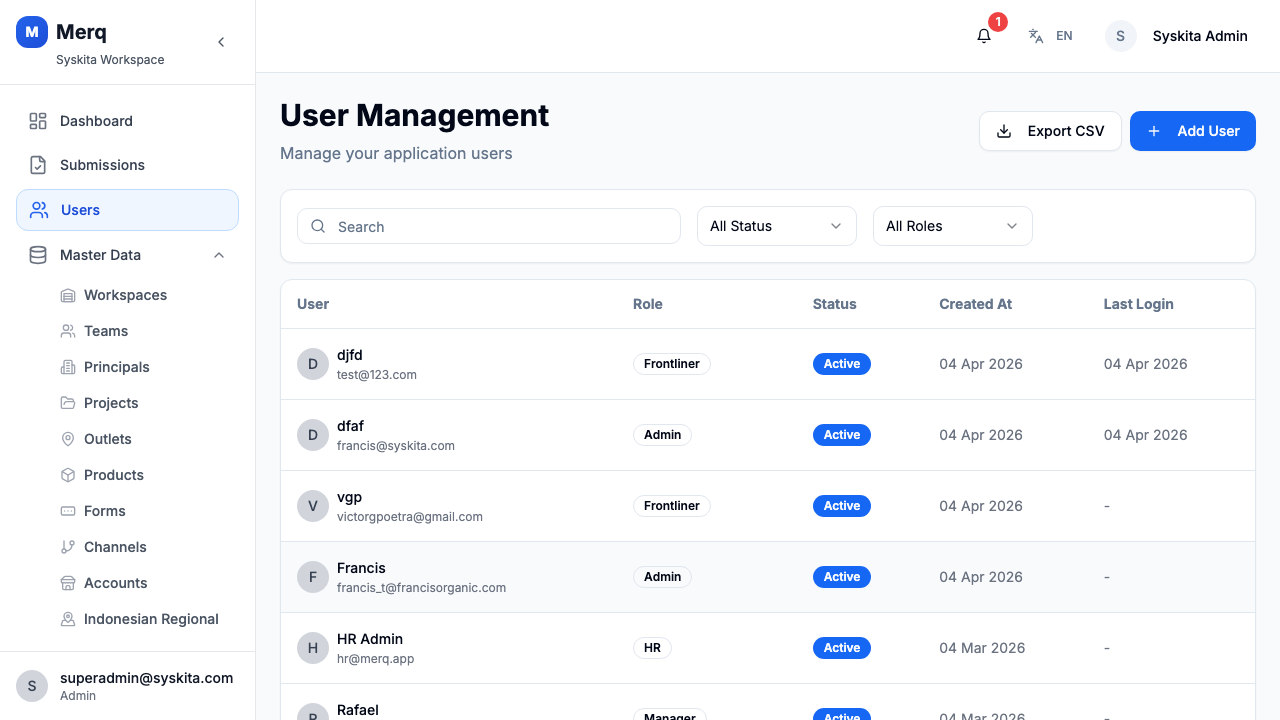
The table shows: name, email, role, team assignment, status, and last activity.
Inviting a User
Section titled “Inviting a User”- Click Add User
- Fill in the form:
- Full Name
- Email — used for login
- Phone Number
- Role — determines permission set (see Roles below)
- Team — optional; assign to a team
- Status — Active or Inactive
- Click Save
The user will receive an email with a default password (configurable in Settings).
User Detail
Section titled “User Detail”Click a user row to open the User Detail page.
The detail page shows:
- Personal Info: full name, email, phone, employee ID, position, join date
- Account: role, status, last login
- Team Assignment: which team(s) the user belongs to
From the detail page you can:
- Edit personal info
- Change Password
- Activate / Deactivate the account
- Assign to Team
Merq uses a role-based permission system. The default roles are:
| Role | Description |
|---|---|
| Super Admin | Full system access across all workspaces |
| Admin | Full access within their workspace |
| Manager | Manages teams, views reports, approves submissions |
| Supervisor | Manages a team’s daily operations |
| Frontliner | Field staff — uses the mobile app for visits and submissions |
| Approver | Reviews and approves attendance and submissions |
Custom roles and permissions can be configured in Settings & RBAC.