Principals
Principals represent the client brands or companies that your field force team works for. Each principal can have multiple projects.
Principals List
Section titled “Principals List”Navigate to Principals in the sidebar to see the full list of principals in your workspace.
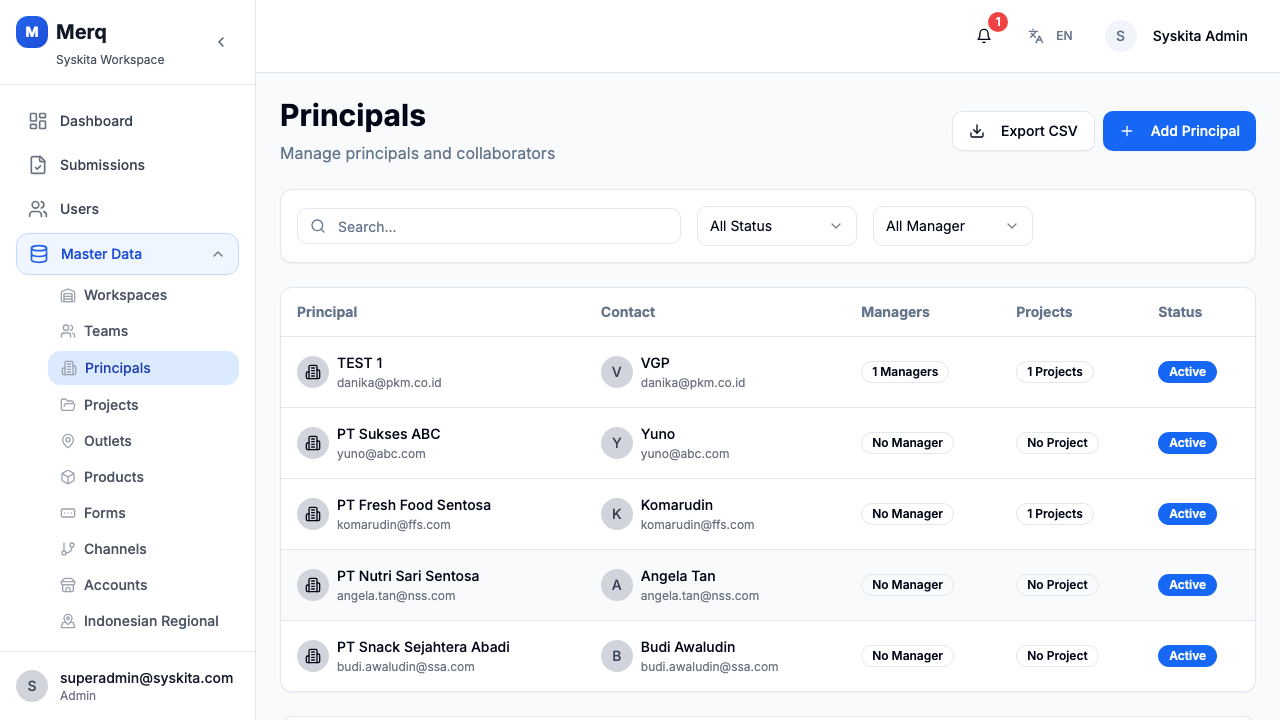
The table shows:
- Principal name
- Code
- Contact person name, phone, and email
- Status (Active / Inactive)
- Created date
Search & Filter
Section titled “Search & Filter”Use the search bar at the top of the table to filter principals by name or code.
Adding a Principal
Section titled “Adding a Principal”- Click Add Principal (top-right of the Principals page)
- Fill in the form:
- Name — Full name of the principal
- Code — Short identifier code
- Contact Name — Primary contact person
- Contact Phone — Phone number
- Contact Email — Email address
- Status — Active or Inactive
- Click Save
Principal Detail
Section titled “Principal Detail”Click any row in the principals table to open the Principal Detail page.
The detail page shows:
- Basic Info: name, code, contact details, status, created at, updated at
- Tabs:
- Managers — Table of users assigned as managers for this principal
- Projects — Table of projects linked to this principal
Exporting Principals
Section titled “Exporting Principals”Click the Export button on the Principals list page to download the current list as a CSV file.
Editing a Principal
Section titled “Editing a Principal”From the Principal Detail page, click the Edit button to update any field. Changes are saved immediately on submit.
Deactivating a Principal
Section titled “Deactivating a Principal”Set the Status to Inactive when editing a principal to prevent it from appearing in active dropdowns across the dashboard. Inactive principals and their projects remain visible in historical data.