Outlets
Outlets are the physical store or point-of-sale locations that field staff visit. The Outlets module has four sub-sections accessible via tabs at the top of the page.
Navigating Outlet Sections
Section titled “Navigating Outlet Sections”The Outlets page is divided into four tabs:
| Tab | Purpose |
|---|---|
| Outlet List | All registered outlets with enrichment data |
| Outlet Proposals | Outlets proposed by field staff from the mobile app |
| Outlet Regions | Geographic regions for outlet classification |
| Outlet Types | Categories/types of outlet (e.g., minimarket, hypermarket) |
Outlet List
Section titled “Outlet List”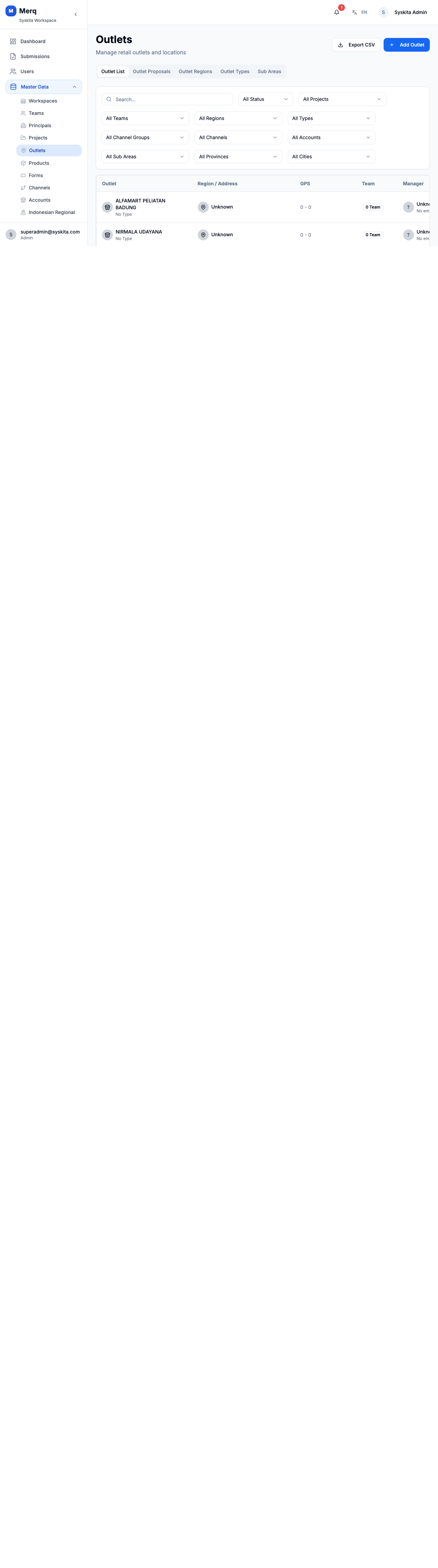
The outlets table shows: outlet name, code, region, type, address, GPS coordinates, status, assigned project, and enrichment data columns (Channel Group, Channel, Account) when applicable.
Filters
Section titled “Filters”Filter the list by:
- Keyword (name or code)
- Region
- Type
- Status
- Project
- Channel Group
- Channel
- Account
- Sub Area
- Store Province
- Store City
Adding an Outlet
Section titled “Adding an Outlet”- Click Add Outlet
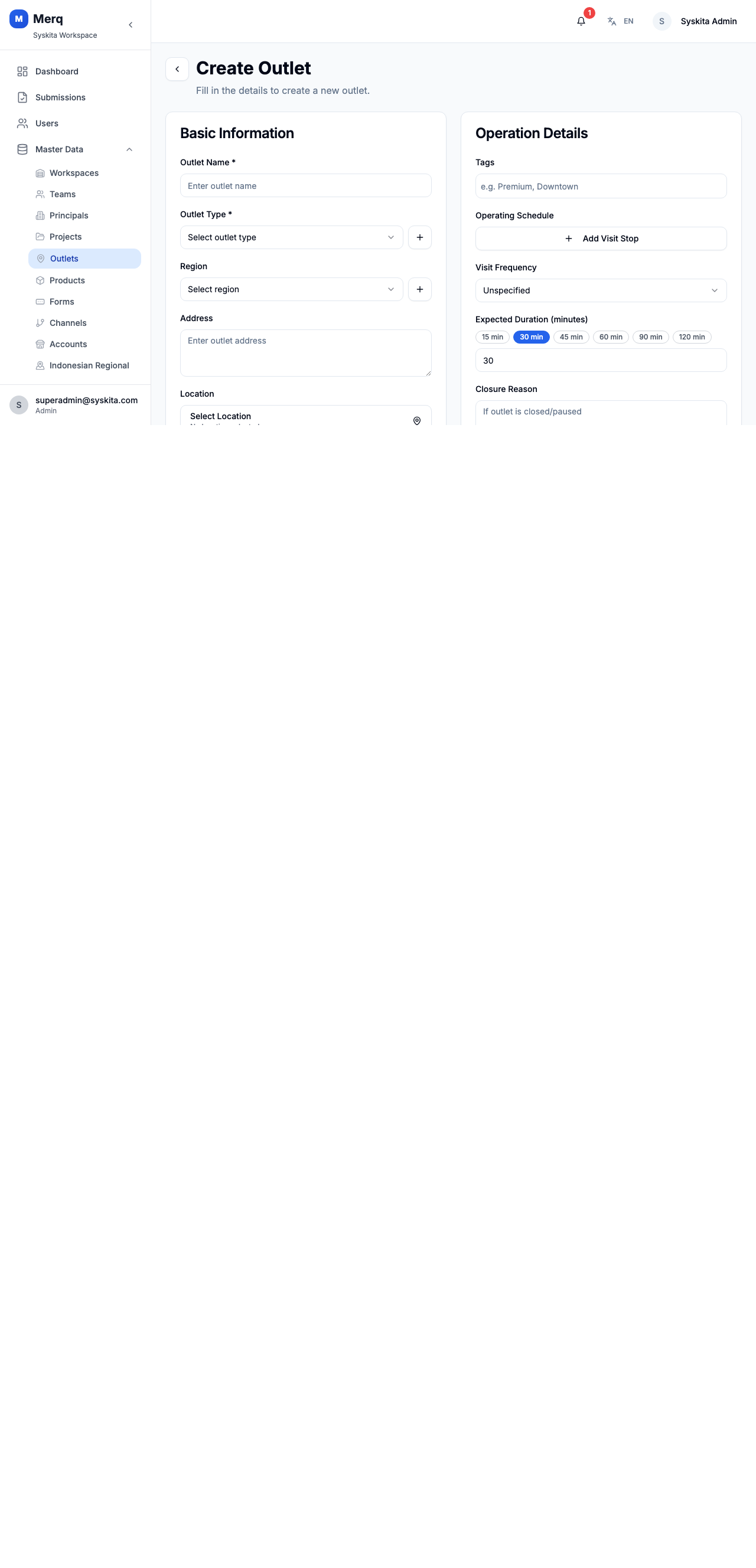
- Fill in the form:
- Name
- Code — unique identifier
- Address
- Region — select from configured regions
- Type — select from configured outlet types
- Latitude / Longitude — primary GPS coordinates
- Geofence Radius — allowed check-in radius in meters (defaults to workspace setting)
- Project — assign to a project
- Status — Active / Inactive
- Click Save
[Screenshot: web_outlet_form]
Adding an Outlet
Section titled “Adding an Outlet”- Click Add Outlet
- Fill in the form:
- Name
- Code — unique identifier
- Address
- Region — select from configured regions
- Type — select from configured outlet types
- Latitude / Longitude — primary GPS coordinates
- Geofence Radius — allowed check-in radius in meters (defaults to workspace setting)
- Project — assign to a project
- Status — Active / Inactive
- Click Save
Enrichment Data
Section titled “Enrichment Data”When adding or editing an outlet, you can optionally provide additional classification and location data to better organize and filter your outlet network.
Classification Hierarchy
Section titled “Classification Hierarchy”The classification hierarchy allows you to categorize outlets by their trade channel and operational structure.
| Field | Description | Example |
|---|---|---|
| Channel Group | Broad category (e.g., Modern Trade, Traditional) | Modern Trade |
| Channel | Specific channel within group | Supermarket |
| Account | Trade account name | Indomaret, Carrefour |
| Sub Area | Operational sub-area for field teams | Jakarta South 1 |
How to fill:
- Select a Channel Group first from the dropdown
- The Channel dropdown will automatically filter to show only channels belonging to that group
- Select a Channel to enable the Account dropdown
- Select an Account (optional) — filters based on selected channel
- Select a Sub Area (optional) — independent dropdown for operational assignment
Timezone
Section titled “Timezone”Select the outlet’s operating timezone to ensure accurate visit scheduling and reporting:
| Option | Description | UTC Offset |
|---|---|---|
| WIB | Western Indonesia Time (Default) | UTC+7 |
| WITA | Central Indonesia Time | UTC+8 |
| WIT | Eastern Indonesia Time | UTC+9 |
Alternative Location
Section titled “Alternative Location”For outlets with multiple GPS reference points (e.g., separate delivery entrance or warehouse location):
| Field | Description | Format |
|---|---|---|
| Alt Latitude | Alternative latitude coordinate | Decimal (e.g., -6.2088) |
| Alt Longitude | Alternative longitude coordinate | Decimal (e.g., 106.8456) |
Remark
Section titled “Remark”Free-form text field for additional notes about the outlet:
- Operating hours not covered by standard fields
- Special delivery instructions
- Contact person details
- Historical notes about the outlet
Regional Location (Indonesia)
Section titled “Regional Location (Indonesia)”For precise administrative location tracking within Indonesia’s governmental structure:
| Field | Description | Cascade Dependency |
|---|---|---|
| Store Province | Province where outlet is located | Independent |
| Store City | City or Regency (Kota/Kabupaten) | Depends on Province |
| Store District | District (Kecamatan) | Depends on City |
| Store Village | Village (Kelurahan/Desa) | Depends on District |
How to fill:
- Select Store Province first — loads all 34 Indonesian provinces
- Select Store City — options automatically filter based on selected province
- Select Store District — options filter based on selected city
- Select Store Village — options filter based on selected district
Exporting Outlets
Section titled “Exporting Outlets”Click Export CSV to download the current filtered outlet list. The exported CSV includes all enrichment fields:
- Classification: Channel Group, Channel, Account, Sub Area
- Location: Timezone, Alternative GPS coordinates
- Regional: Store Province, Store City, Store District, Store Village
- Notes: Remark field
Outlet Proposals
Section titled “Outlet Proposals”Field staff can propose new outlets from the mobile app when they visit a location not yet in the system. These proposals appear here for admin review.
For each proposal you can:
- Approve — converts the proposal into a registered outlet
- Reject — dismisses the proposal
Outlet Regions
Section titled “Outlet Regions”Regions allow you to group outlets by geography (e.g., “Jakarta Selatan”, “East Java”).
Adding a Region
Section titled “Adding a Region”- Click Add Region
- Enter the region name
- Click Save
Outlet Types
Section titled “Outlet Types”Types allow you to classify outlets by category (e.g., “Minimarket”, “Supermarket”, “Pharmacy”).
Adding an Outlet Type
Section titled “Adding an Outlet Type”- Click Add Type
- Enter the type name
- Click Save
Bulk Import
Section titled “Bulk Import”To import many outlets at once, use the Import Center with the Outlets template. The import template includes columns for all enrichment fields.
Related Documentation
Section titled “Related Documentation”- Master Data Management — Technical details on Channel Group, Channel, Account, and Sub Area entities
- Indonesian Regional Service — How regional location data is integrated
- Import/Export Guide — Bulk outlet operations