Submissions & Reports
Submissions
Section titled “Submissions”Submissions are form responses collected by frontliners during a visit. Each submission belongs to a visit and contains field answers including text, numbers, photos, currency values, and percentages.
Submissions List
Section titled “Submissions List”Navigate to Submissions in the sidebar.
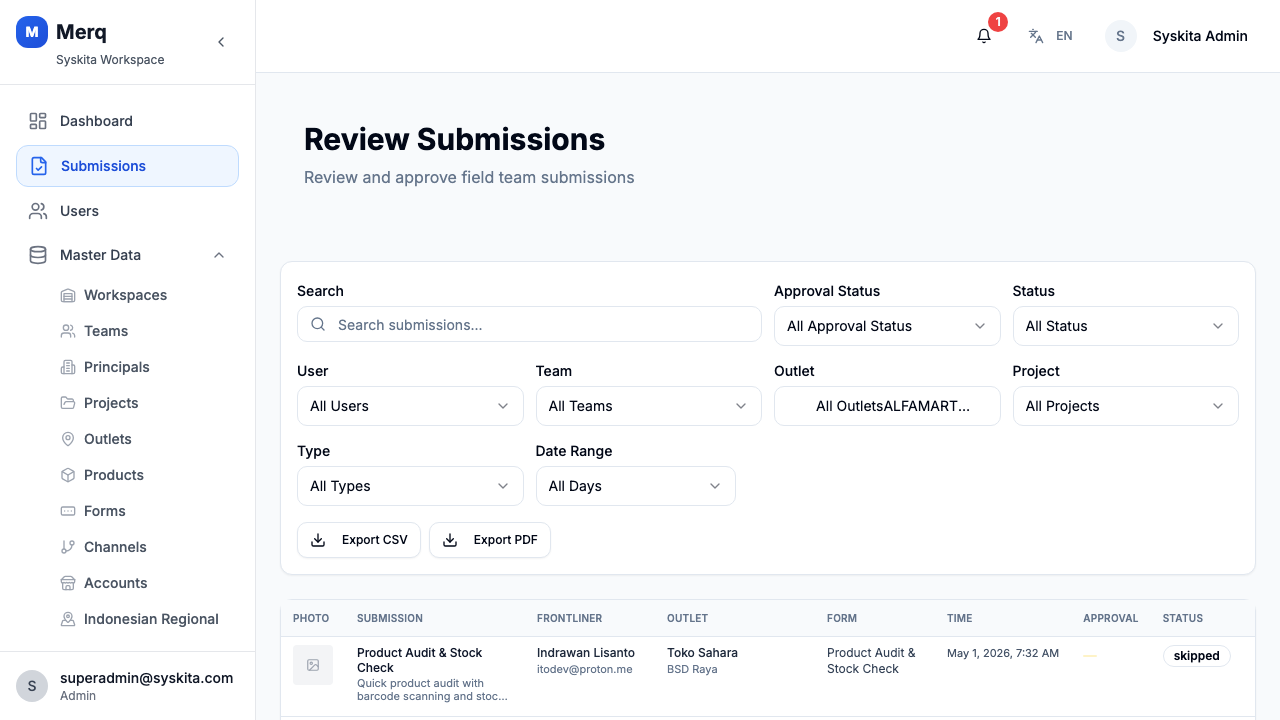
The table shows: form title, outlet, frontliner, project, submission date, and approval status.
Filters
Section titled “Filters”Filter submissions by:
- Keyword
- Status (Pending, Approved, Rejected)
- Project
- Team
- User / Frontliner
- Date range
- Outlet
Reviewing a Submission
Section titled “Reviewing a Submission”Click any submission row to open the Submission Detail side panel (Sheet).
The detail panel shows:
- Title — form/task name
- Approval Status — Pending / Approved / Rejected
- Submitted By — frontliner name
- Project — linked project
- Outlet — store visited
- Form Answers — all field responses:
- Text answers
- Number answers
- Photo attachments
- Currency values
- Percentage values
Approving a Submission
Section titled “Approving a Submission”- Open the submission detail panel
- Review all answers and photos
- Click Approve
Rejecting a Submission
Section titled “Rejecting a Submission”- Open the submission detail panel
- Click Reject
- Enter rejection notes (mandatory)
- Click Confirm Reject
The frontliner will be notified of the rejection and the reason.
Exporting Submissions
Section titled “Exporting Submissions”Two export options are available:
- Export CSV — spreadsheet format, honors current filters
- Export PDF — formatted document, honors current filters
Reports
Section titled “Reports”The Reports section provides a detailed breakdown of sales and stock data collected during visits.
Reports List
Section titled “Reports List”Navigate to Reports (accessible from the sidebar or Submissions section).
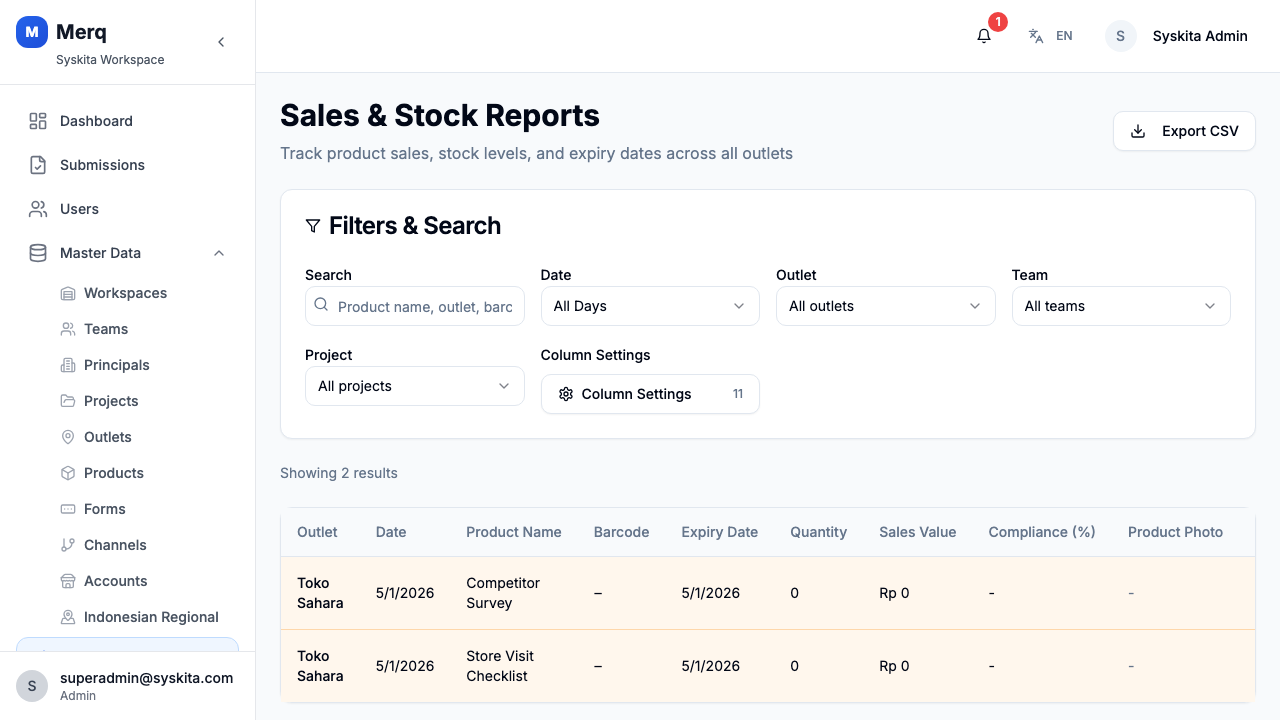
Filters
Section titled “Filters”| Filter | Options |
|---|---|
| Search | Outlet name, product name |
| Date | Today, Yesterday, Last 7 days, Last 30 days, Last Year, Custom (single date or range) |
| Outlet | Filter by specific outlet |
| Team | Filter by team |
| Project | Filter by project |
Table Columns
Section titled “Table Columns”The reports table includes:
| Column | Description |
|---|---|
| Outlet | Store name |
| Date | Submission date |
| Product Name | Product being reported |
| Barcode | Product barcode |
| Expiry Date | Product expiry date |
| Quantity | Stock quantity |
| Sales Value | Revenue from sales |
| Compliance % | Planogram / shelf compliance |
| Product Photo | Photo of product on shelf |
| PO Image | Purchase order photo |
| Signature | Customer signature |
| Submitted By | Frontliner name |
| Status | Good / Near Expiry / Expired |
Column visibility can be toggled using the Column Visibility toggle — selections are persisted to the browser’s local storage.
Product Status Badges
Section titled “Product Status Badges”| Status | Meaning |
|---|---|
| Good | Product is within expiry date |
| Near Expiry | Product is close to expiry |
| Expired | Product is past expiry date |
Report Detail
Section titled “Report Detail”Click a report row to open the Report Detail drawer showing all fields and full-size photos.
Exporting Reports
Section titled “Exporting Reports”Click Export CSV to download the current filtered report as a spreadsheet.